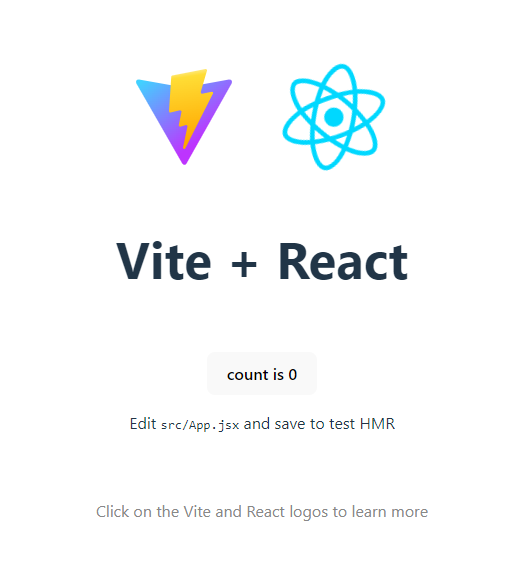
This tutorial shows how to install and configure the JavaScript React library in Amazon Web Services (AWS) cloud using Red Hat Enterprise Linux 9.
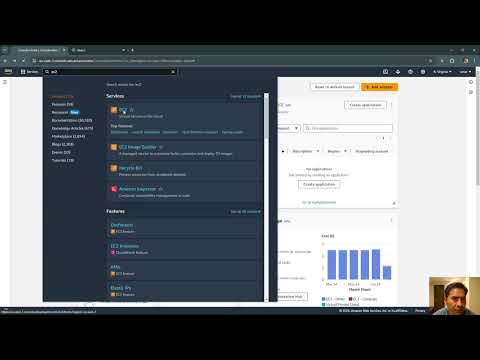
Launch and EC2 instance with Red Hat
Select the following options when lunching an instance.
- Give a name to the instance.
- Select Red Hat Enterprise Linux 9 - Free tier eligible as the operating system.
- Create or choose a key pair
- Choose the appropiate security groups (TCP ports 22 and 5173 must be opened)
Connect to the EC2 Red Hat instance with SSH by using WinSCP
- Default user ec2-user
- Get the .ppk key file
- Navigate to Advanced -> SSH -> Authentication -> Private Key File -> OK
Update and Install Package Repositories
- Update Red Hat 9
sudo dnf update- Install dependencies
sudo dnf install zip
sudo dnf install unzip- Install node js
# installs fnm (Fast Node Manager)
curl -fsSL https://fnm.vercel.app/install | bash

# activate fnm
source /home/ec2-user/.bashrc

# download and install Node.js
fnm use --install-if-missing 20

# verifies the right Node.js version is in the environment
node -v # should print `v20.16.0`

# verifies the right npm version is in the environment
npm -v # should print `10.8.1`
Launch React with Vite
npm create vite@latest- Create a project name
- Choose React library
- Select variant as JavaScript
cd "project name"
npm install
npm run dev -- --host- Go to http://public-ip-address:5173/ and you should see: